
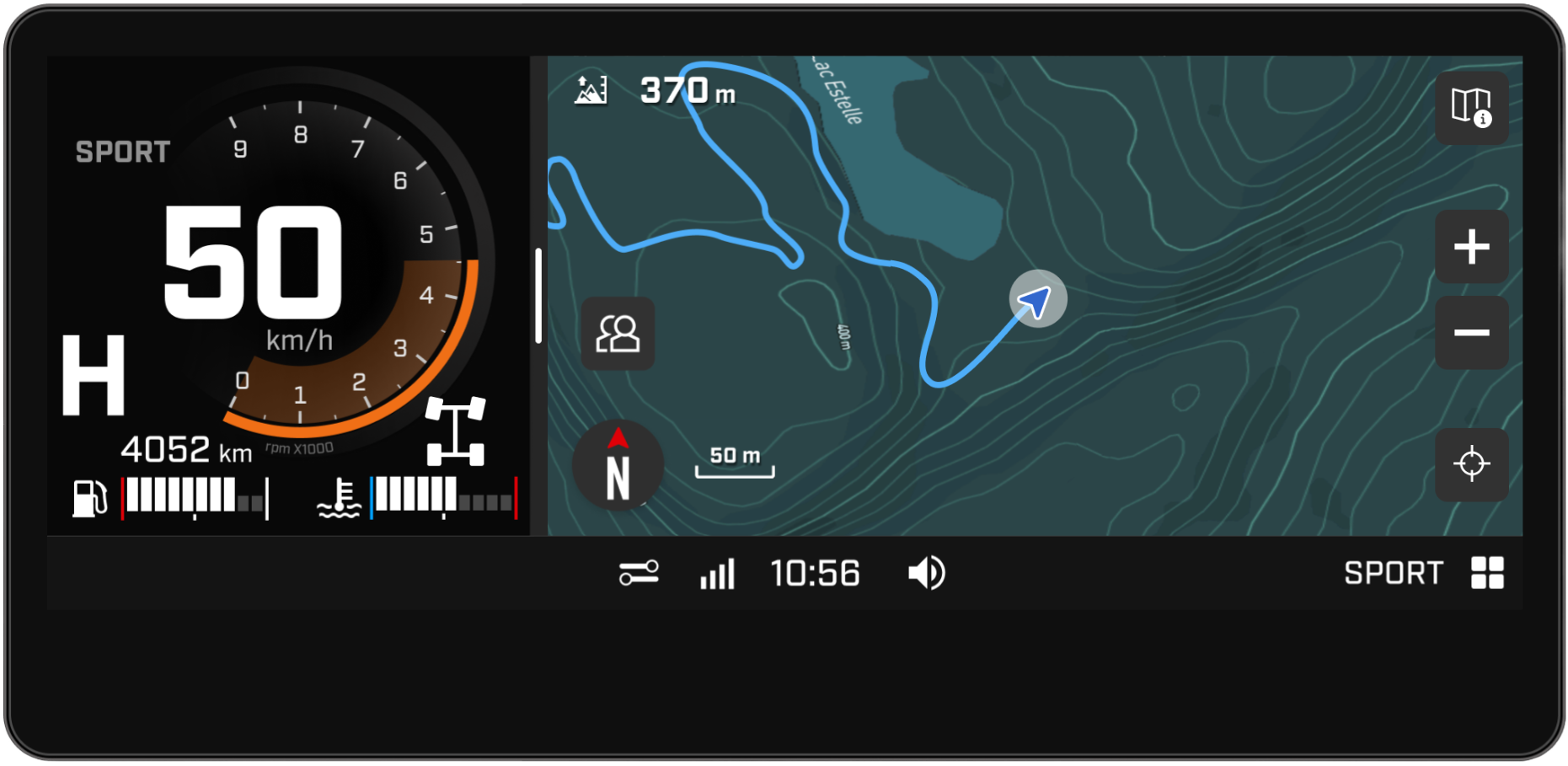
What Is the Built-In GPS?
The built-in GPS is an GPS system integrated in your Can-Am Off-Road vehicle. It is your must-have feature for seamless navigation. Use the built-in GPS without having to connect your phone to your vehicle display or be connected to a cellular network. View your position on embedded topographic ORV maps, see official trails in supported regions, record your tracks automatically, and more. And if you want a richer navigation experience with more features, just plug in your phone and use the free BRP GO! app.
The built-in GPS is exclusive to models equipped with the 10.25” touchscreen display.
What’s the Difference Between the Built-In GPS and the BRP GO! app?
Two navigation tools are offered to suit your preferences. The Built-in GPS lets you view your position on topographic maps and track your rides without a phone connection, making it the perfect choice for riders who frequently ride in areas without service. Meanwhile, the BRP GO! app gives you more navigation features by connecting your phone via USB such as turn-by-turn directions and points of interest, making it ideal for riders looking to plan excursions and follow precise directions.
Available features also vary between the two systems – the built-in GPS offers basic functionality while BRP GO! offers a richer navigation experience.
Available features of the built-in GPS (no phone connection required) :
- See topographic maps and ORV trails (in supported regions)
- View your position on the map
- Record your current trip (track)
- Show/hide tracks from previous rides
- Orient yourself with a compass
Available features of the BRP GO! app (phone connection required) :
- Same features as the built-in GPS
- Create and share itineraries
- Ride with turn-by-turn directions
- Locate your friends (with cellular network)
- Search and find points of interest
- Save custom locations
- Get riding statistics
- Consult past rides on the mobile app
- And more
It's important to understand that the two systems are independent. If you use the built-in GPS for your rides, your ride recordings will be saved in your vehicle's display. Conversely, if you use BRP GO!, your rides will be saved in your mobile app. It is not possible to transfer data between the two systems.
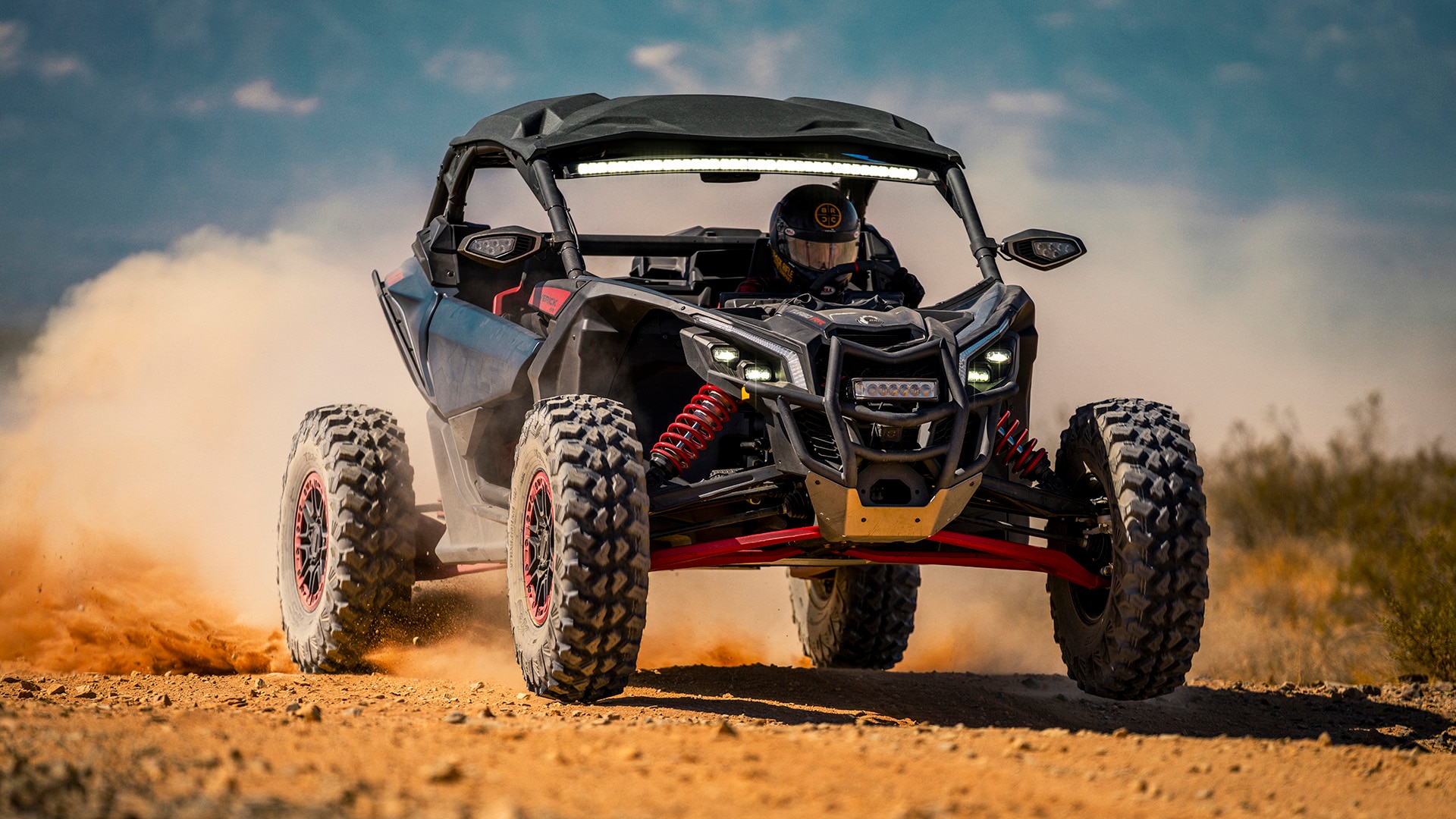
What to Do Before Your Ride to Access the Built-In GPS Features?
Before diving into your adventure, follow these quick steps to fully enjoy your ride with an elevated navigation experience.
Make Sure That You Have a GPS Module Installed on Your ORV
The built-in GPS is only available on ORV models equipped with the 10.25” display.
- If you have a 2025 or newer model, your vehicle already comes with a GPS module
- If you have a 2024 or older model, you will have to purchase a GPS module and have it installed by your local dealer. You will also need to do a software update either via Wi-Fi or directly at your local dealer
Download a Map Region Via Wi-Fi
Stay prepared for any adventure by downloading ORV maps of your favorite regions via Wi-Fi, ensuring you have up-to-date navigation and topographic maps at your fingertips. You will need to follow two steps: (1) Connect your display to a Wi-Fi network and (2) download maps of the regions of your choice.
On your ORV display :
- Go to the Applet menu
- Select "Preferences"
- Select "Wi-Fi" from the list on the left
- Then, select "Add New Network", find the network you would like to connect to from the list that appears on the screen and enter the password
Please note : If no Wi-Fi network is available near the vehicle, you can share your smartphone cellular network by hotspot. Just note cellular data fees may apply.
On your ORV display:
- Go to the Applet menu
- Select "Preferences"
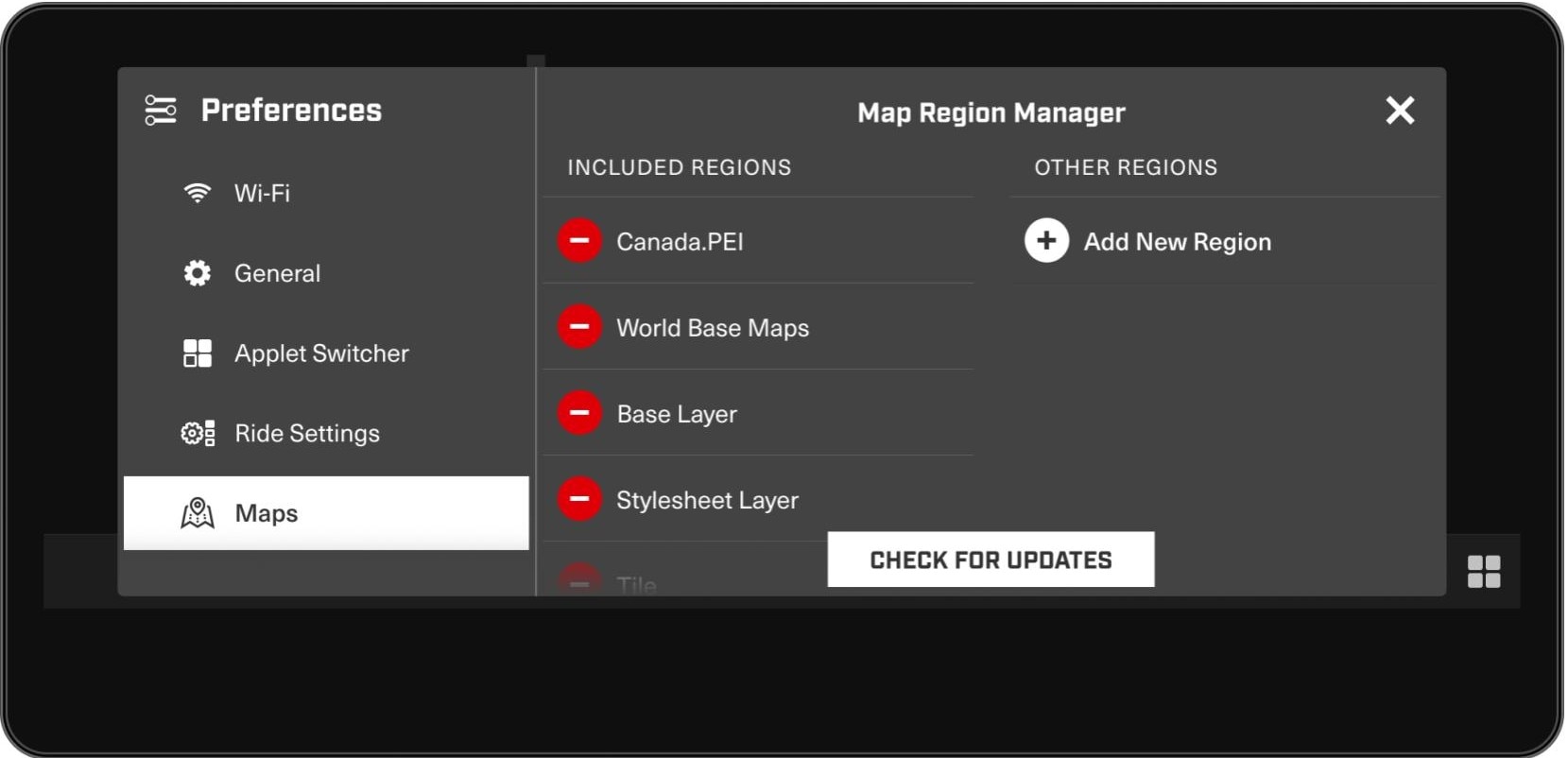
- Select "Maps" from the list on the left (you may need to scroll down). The Map Regional Manager page will show two columns. On the left is the "Included Regions" which are the maps/regions already downloaded in the display. The right-hand column is titled “Other Regions”, these are the regions available for download. You will notice there are already several maps in the included regions list. These are the base layers and should not be removed.
- Select the "Add New Region" button to open a list of available countries.
- Select the country you wish to explore from the list provided and then select the regions you wish to download from the list. Once you have selected your regions you will see them appear in the "Other regions" column.
- To start the download, select "Download update" at the bottom of the screen. A message will appear indicating the map update is in progress. Once the download has completed, the region will be shown in the Included Regions list.
During Your ATV or SxS Ride
Let the built-in GPS guide you through your adventures, whether you’re exploring trails or venturing into wide open terrain. Learn how to use all of its features below.
Track Your Ride
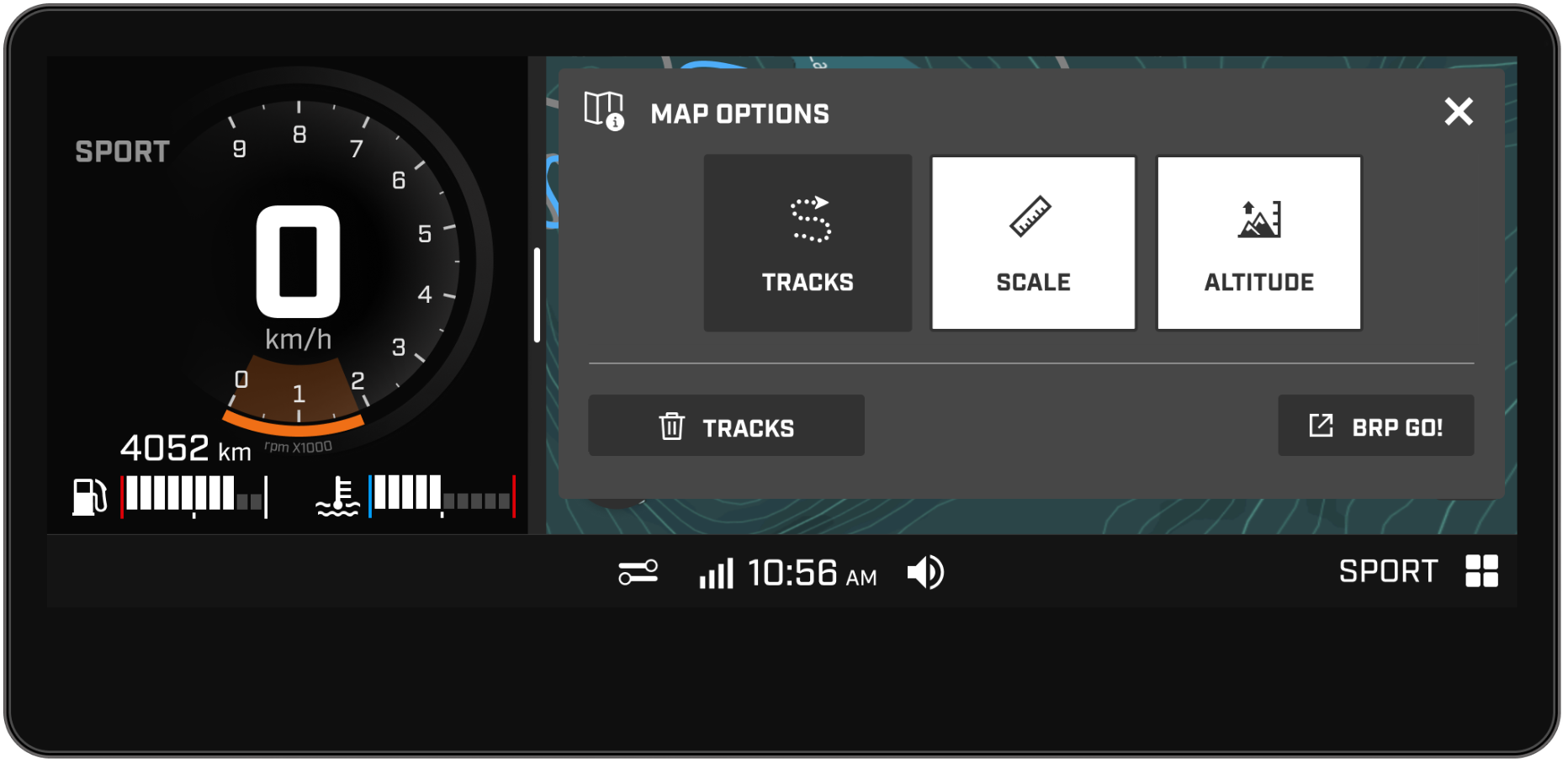
The ride recording feature allows you to stick to the path wherever you go by recording every move. Once your vehicle is on and you’re ready to start, a track will automatically appear as a blue marker, recording your route as you move. It will therefore be super easy for you to retrace your route and revisit your trips! All tracks will be saved in your vehicle display. You can also choose to show or hide your tracks or delete all previous tracks via the map options.
1. On the map, click the "Map Options" button at the top right of the screen
2. Select the "Tracks" button to enable the function
3. If you want your tracks to be hidden, select the "Tracks" button a second time
1. On the map, click the "Map Options" button at the top right of the screen
2. Select the "🗑️Tracks" button at the bottom of the screen. A message will appear on the screen to confirm you want to erase your tracks.
Explore map options
The built-in GPS offers several map options to cater to your preferences:
- Zoom in/out: Adapt your screen to your eyesight for optimal visibility.
- Compass: Easily orient yourself for precise navigation.
- Lock North up: Keep your map orientation facing North, like a paper map.
- Display mode: Customize your map’s appearance with light or dark mode.
- Scale and altitude: Show or hide the scale of the map and current altitude.
Quick reminder: if you want to use more navigation features, connect your phone via USB and use the BRP GO! app.
On the map, use the dedicated "+" and "-" buttons to zoom in or out.
At the bottom left of the screen, click on the North compass button ("N"). To deactivate the function, click a second time on the button.
Go to Applet Menu > Preferences > Display > Appearance.
Map Options (top right of map) > Press the desired map element square to show/press again to hide the desired map element.
Frequently Asked Questions about the Built-In GPS
You can download up to 8 regions. If you reach this limit and wish to add another area, you can easily do so by removing one of the already downloaded regions. To learn how to remove a downloaded region, please refer to the next question.
To remove a region from the included regions list:
- Go to the Applet menu
- Select "Preferences"
- Select "Maps"
- Select the red circle next to the region you wish to remove and then select "Remove" when prompted.
Canada: Manitoba, New Brunswick, Nova Scotia, Québec
United States: Alaska, Arizona, Arkansas, California, Colorado, Florida, Idaho, Illinois, Indiana, Iowa, Kansas, Kentucky, Louisiana, Michigan, Minnesota, Mississippi, Missouri, Montana, Nebraska, Nevada, New Mexico, New York, North Dakota, Ohio, Oklahoma, Oregon, Pennsylvania, South Carolina, South Dakota, Tennessee, Texas, Utah, Washington, West Virginia, Wisconsin, Wyoming
To update one of your included regions:
- Go to the Applet menu
- Select "Preferences"
- Select "Maps"
- Select "Check for Updates" at the bottom of the screen
- Select "Download Update" to start the download. A screen will appear indicating the map update is in progress. Once the download has completed, the region will be shown in the "Included Regions" list.
If your vehicle display shows “Invalid GPS position”, it means the GPS is not receiving a signal from your current location. This can happen if your GPS is not properly connected or if you are in an area where the signal may be interrupted (eg: indoors). Make sure that you start your ride in a clear area. Note that it can take up to 20 to 40 seconds for the GPS to receive a signal and resolve the issue.
If your vehicle display shows “No GPS detected”, it could be due to several reasons: no GPS unit is installed or an update issue or an invalid position. Ensure that the GPS module is properly installed and connected, check for any necessary updates, and verify that your current location is clear and valid.
The storage capacity for tracks is designed to hold a large amount of data, allowing you to record and save many trips. However, if you reach the limit, track recording will pause. To restart recording, you will need to delete previous tracks.
The system may take longer to load a region that you open for the first time. Make sure to browse through the map before starting your ride to ensure a better experience. Once the map has fully loaded, the system should operate faster.
Should you have any remaining questions regarding the 10.25" display, please refer to our FAQ page.