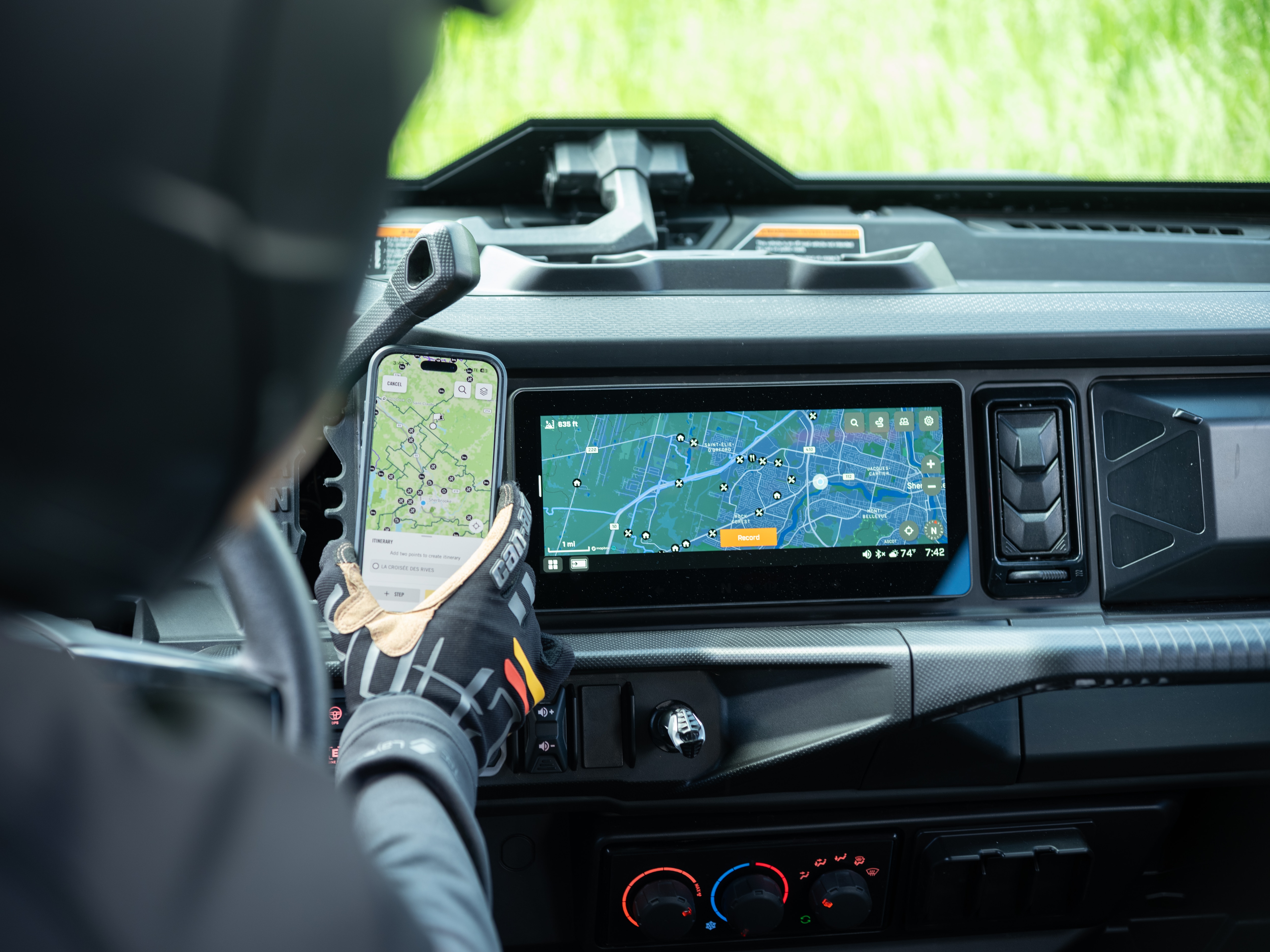
To create an itinerary in the BRP GO! app on your phone:
1. Go to the NAVIGATION tab
2. Press the RIDES icon on the top left (below the search bar)
3. Select CREATE ITINERARY
4. Drag the marker on the map to your desired starting point
- You can tap the Search icon to choose from an official POI or a custom POI
5. Press START HERE
6. Select +STEP to add another waypoint to the itinerary
- You can tap the Search icon to choose from an official POI or a custom POI
7. Press ADD TO ITINERARY
8. Repeat steps 5 & 6 above until your desired itinerary is created
9. Select NEXT
10. Tap the 3 dots on the top right if you'd like to rename the itinerary, share it, add it to a group, duplicate it, or delete it
11. Select the arrow on the top left to save the itinerary for later
After your itinerary has been transferred:
1. Open the Navigation app on your display
2. Select the RIDES icon
3. Press Itineraries
Tap an itinerary to start navigating to your destination with turn-by-turn directions on official ORV trails, directly on your display.
Update official ORV trails
1. Open the Navigation app on your display
2. Pair your phone to the display via Bluetooth and open the BRP GO! app (ensure you are signed in to your account)
In the BRP GO! app:
3. Select the OFF-ROAD playground from the Map Details (top right of Navigation tab)
4. Scroll down and press SEE VEHICLE TRAILS
5. Make sure the region(s) you want to update are listed under Off-Road
6. Choose CHECK UPDATE under TRANSFER TO VEHICLE