How to Unlock BRP GO! On-Road Navigation

YouTube Video : How to Unlock BRP GO

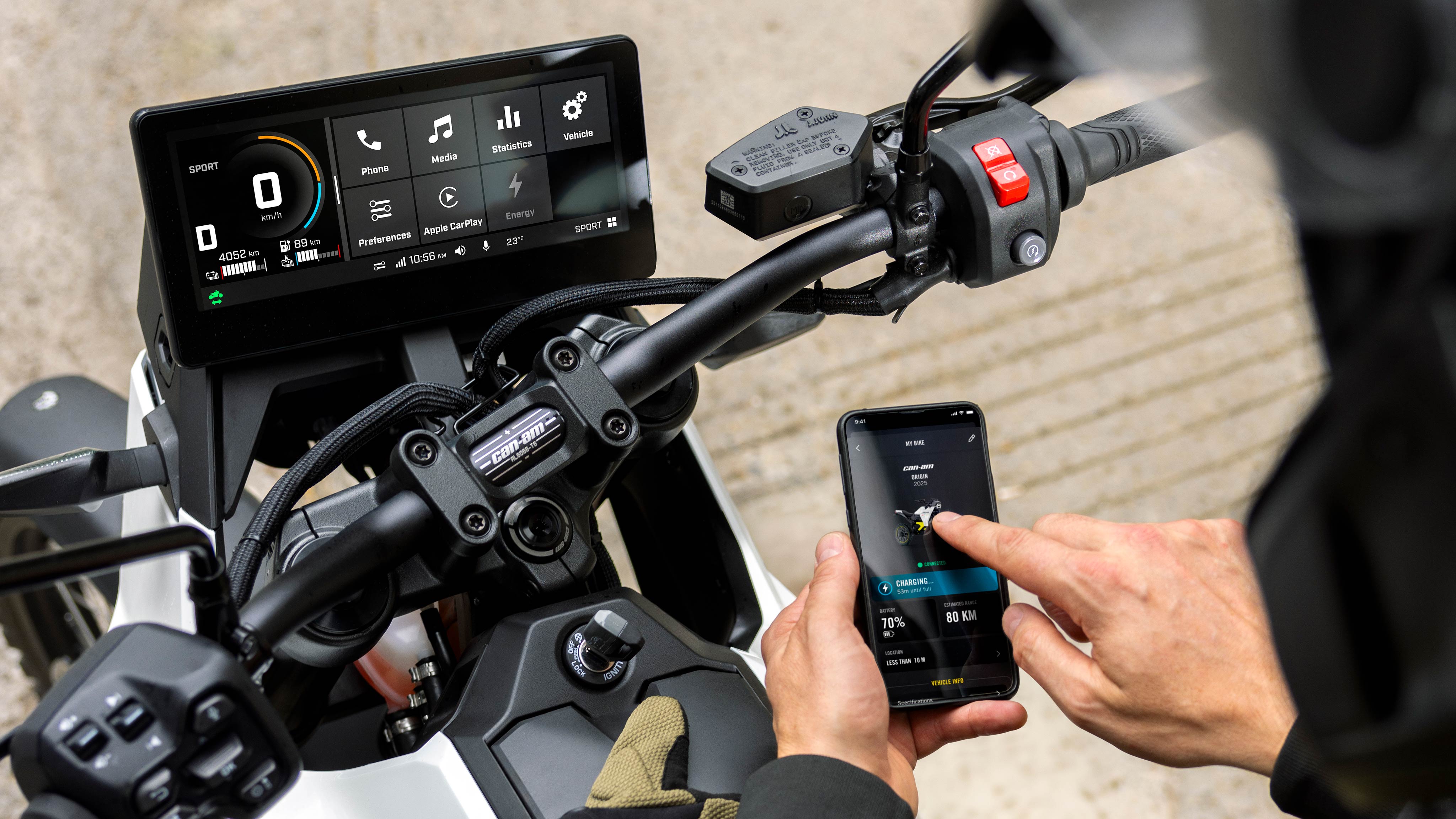
BRP GO! is built for riders, enhancing navigation, connectivity and confidence every time you hit the road. BRP GO! On-Road Navigation turns your Can-Am vehicle’s 10.25″ touch display into a fully integrated navigation system designed specifically for riders. It’s built to feel seamless, intuitive and ready to go wherever your ride takes you.

Whether you ride a 3-wheel vehicle like the Spyder or Canyon, or an electric motorcycle like the Pulse or Origin, this guide walks you through everything you need to unlock and activate BRP GO! on your vehicle.

The setup is simple and beginner-friendly, and only takes a few steps to get you connected and ready to ride.
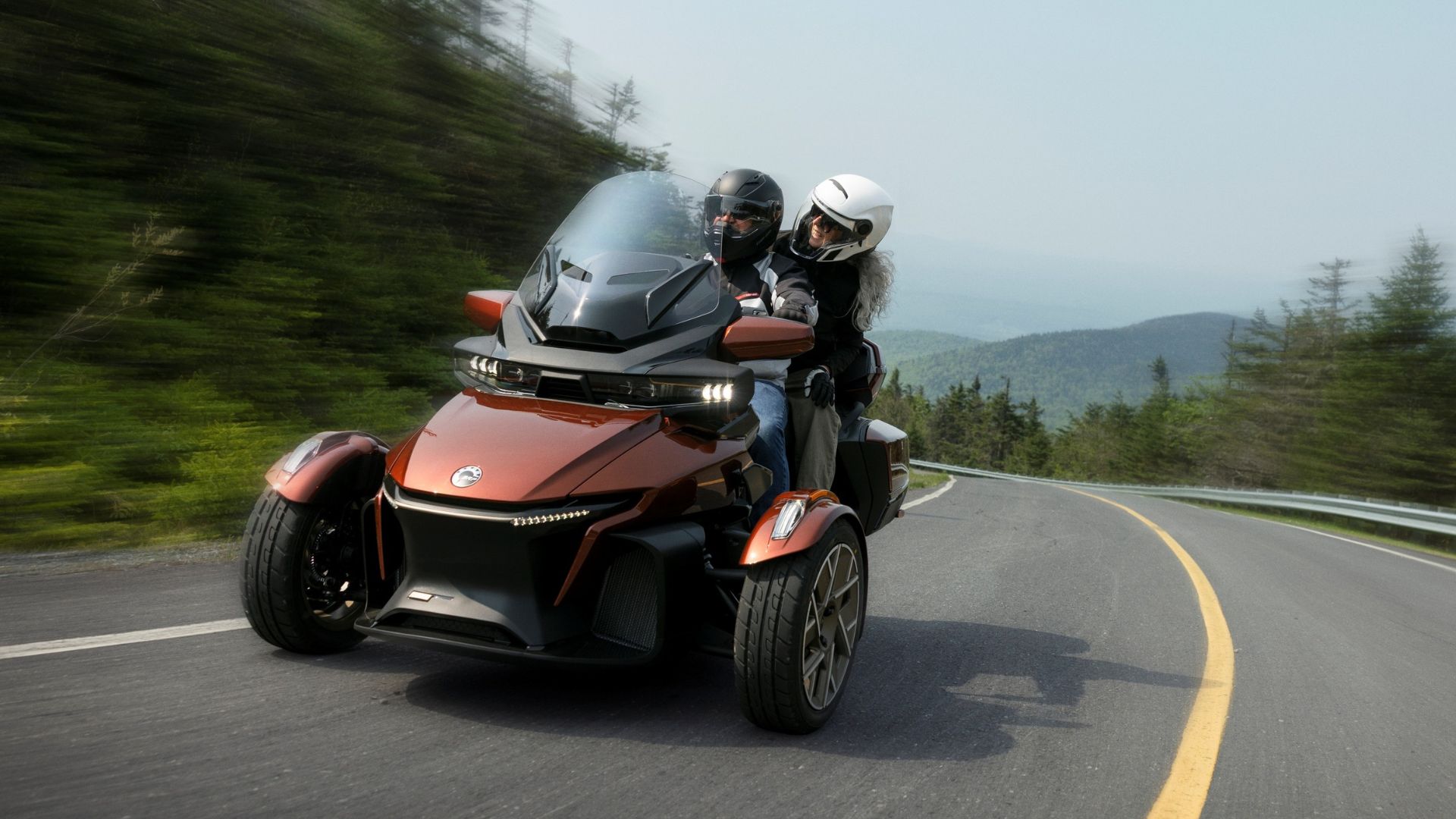
What Is BRP GO! and Why Use It?

BRP GO! is an app that integrates directly with your Can-Am’s 10.25″ touch display. It allows you to access maps, view planned routes and ride information directly from your vehicle, without needing additional devices or complicated setups.

It’s designed for 3-wheel or electric motorcycle owners and works with both Android and iOS devices. No headset is required, and everything is visible directly on your display.

The system is available in over 60 countries and supported on model years 2024 to 2027 vehicles equipped with the 10.25″ touch display, making it widely accessible for riders looking for a built-in navigation solution. 

Step-by-Step Unlock

Download and Prepare the App

Start by downloading or updating the free BRP GO! app from the Google Play Store or Apple App Store. Once installed, log in to your BRP GO! account or create a new profile.

From the app, open the Discover tab and select “Activate Vehicle.” You will be prompted to enter your Can-Am VIN, which links your vehicle to your account and unlocks On-Road Navigation.

Update and Configure the Display

Next, prepare your vehicle’s display so it can run BRP GO! properly.

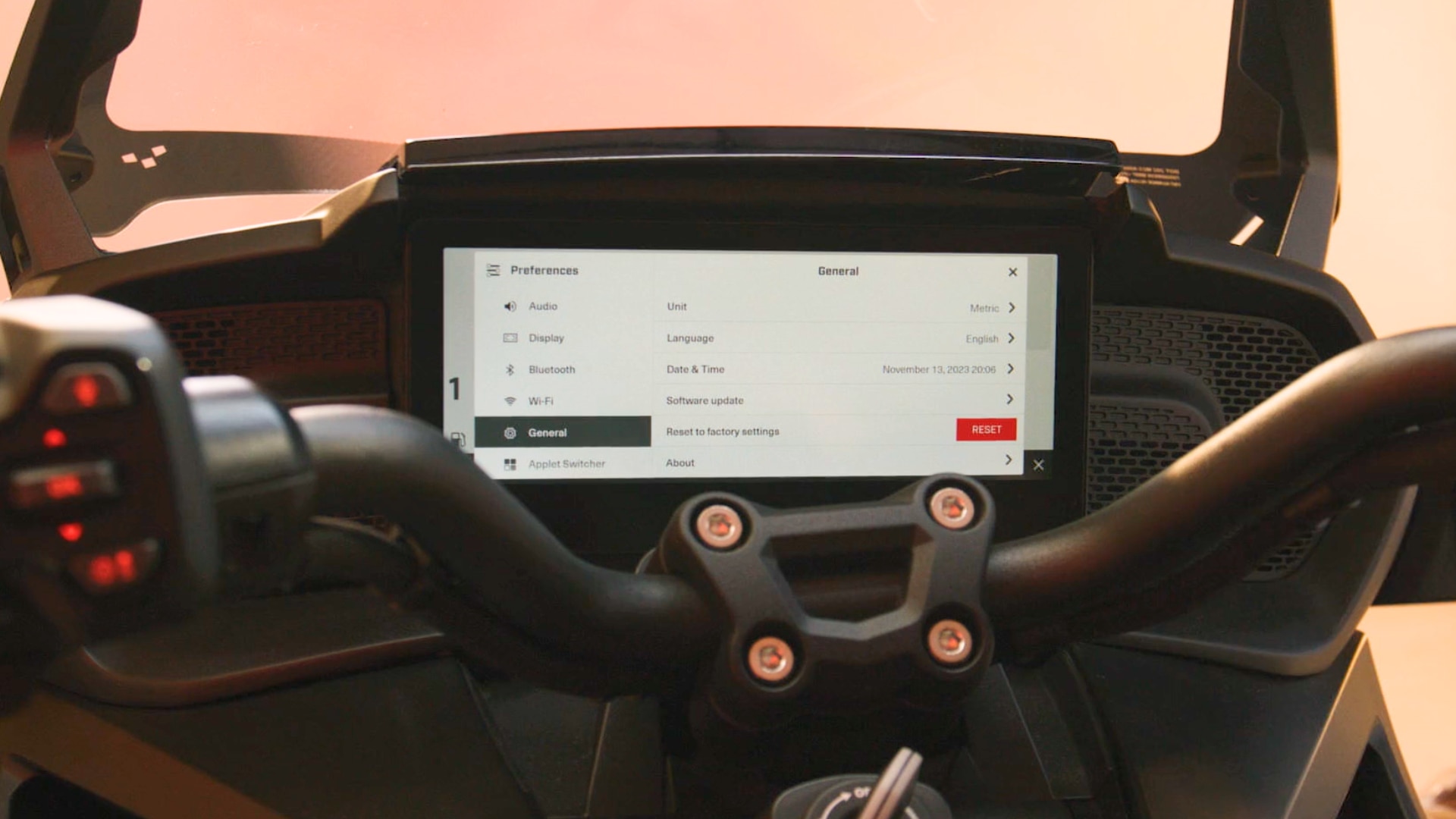
Open the Applet Menu on your 10.25″ touch display. Tap Preferences, select Wi-Fi from the menu on the left and connect to a network. From the same menu in Preferences, go to General and select Software Update. If an update is available, download it.

Once updated, scroll down the menu and select Navigation. Press ON, then reboot when the message pops up.

After rebooting, you will see that the Navigation applet has replaced the Apple CarPlay applet. Select this new Applet.

If you ever want to switch back to Apple CarPlay, you can do so by going to Preferences, then Navigation, and setting BRP GO! to OFF.

Connect and Use On-Road Navigation

With everything activated, you are ready to connect your phone and start navigating.

Open the BRP GO! app on your phone and select the On-Road playground in the map details section. Then connect your phone to your vehicle using a high-quality data transfer cable.

💡Note: BRP recommends using a cable that supports USB 2.0 or higher, delivers at least 3 A, offers a data transfer speed of 480 Mbps or more, and is no longer than 6″. Also make sure all required permissions are enabled on your phone to avoid connection issues.

Once connected, your navigation will appear directly on your vehicle’s display, ready to guide your ride.

Ride Connected with BRP GO!

With BRP GO!, your Can-Am becomes a fully connected riding experience. You can plan routes, follow turn-by-turn directions and see your friends on the map, all from your built-in display.

With navigation, connectivity and rider-focused features working together, BRP GO! helps you ride smarter, stay confident and focus on what matters most: the road ahead.

More articles about our connected technologies

  • How to update the software on the Can-Am Spyder, Canyon, Pulse or Origin touchscreen display

    How to update the software on the Can-Am Spyder, Canyon, Pulse or Origin touchscreen display


    Here's how you can update your Can-Am Spyder, Canyon, Pulse or Origin. 10.25” touchscreen display software in order to benefit from the newest features.

    Learn More
  • How to connect the BRP GO! app to your electric motorcycle

    How to connect the BRP GO! app to your electric motorcycle


    Consult vehicle information right from your phone.

    Learn More